Works with Open Dental
Tell it what you need. Veneer enters it in Open Dental.
Veneer sits on top of the software your office already runs. Ask for a chart entry, a note or a follow-up, and watch it fill in. Nothing saves until you approve it.
Runs on your office PCs. No migration, no new chart to learn.
Open Dental is powerful. It’s also a lot of clicking.
Every chart entry, note and booking is a trip through menus and dialogs, often with gloves on and a patient in the chair. Veneer turns that into one sentence and one approval.
How it works
One request, four steps, all on the screen you already use.
Ask for it
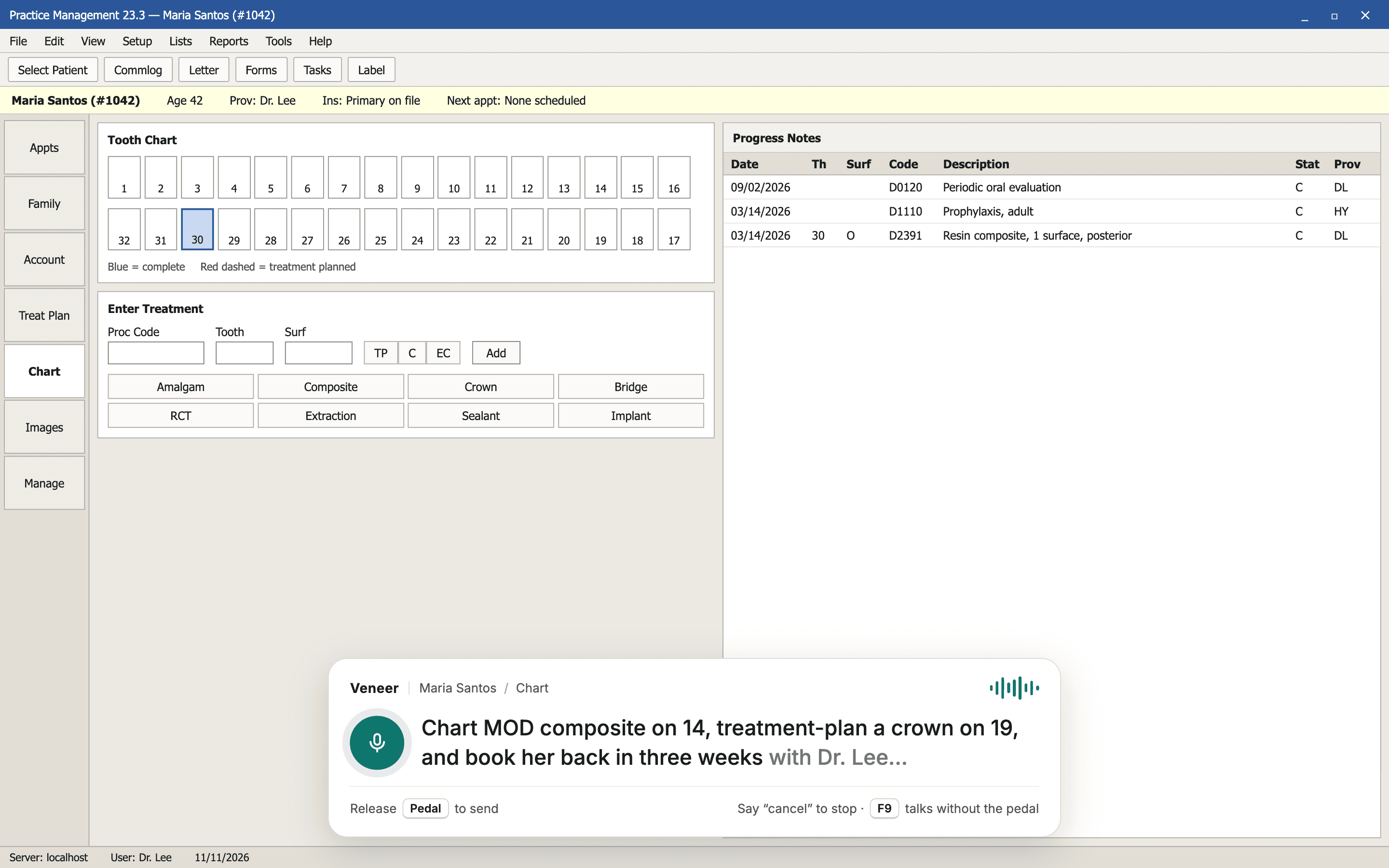
Press F9 and type what you need. Voice and a foot pedal are on the way. Veneer knows which patient and screen you’re on.
Check the plan
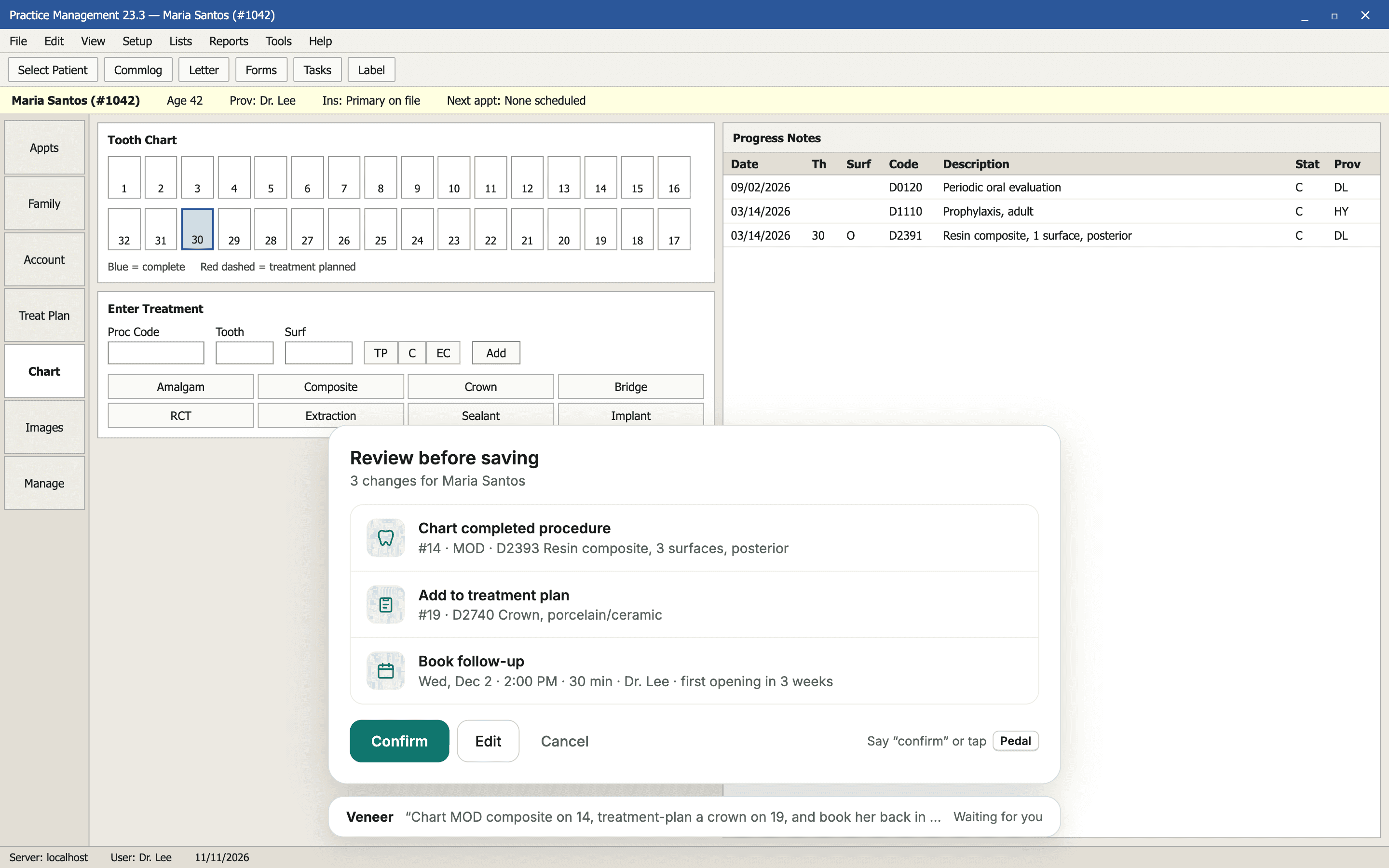
See exactly what will change: tooth, surfaces, code, fee, time slot. Approve it, edit it or cancel.
Watch it work
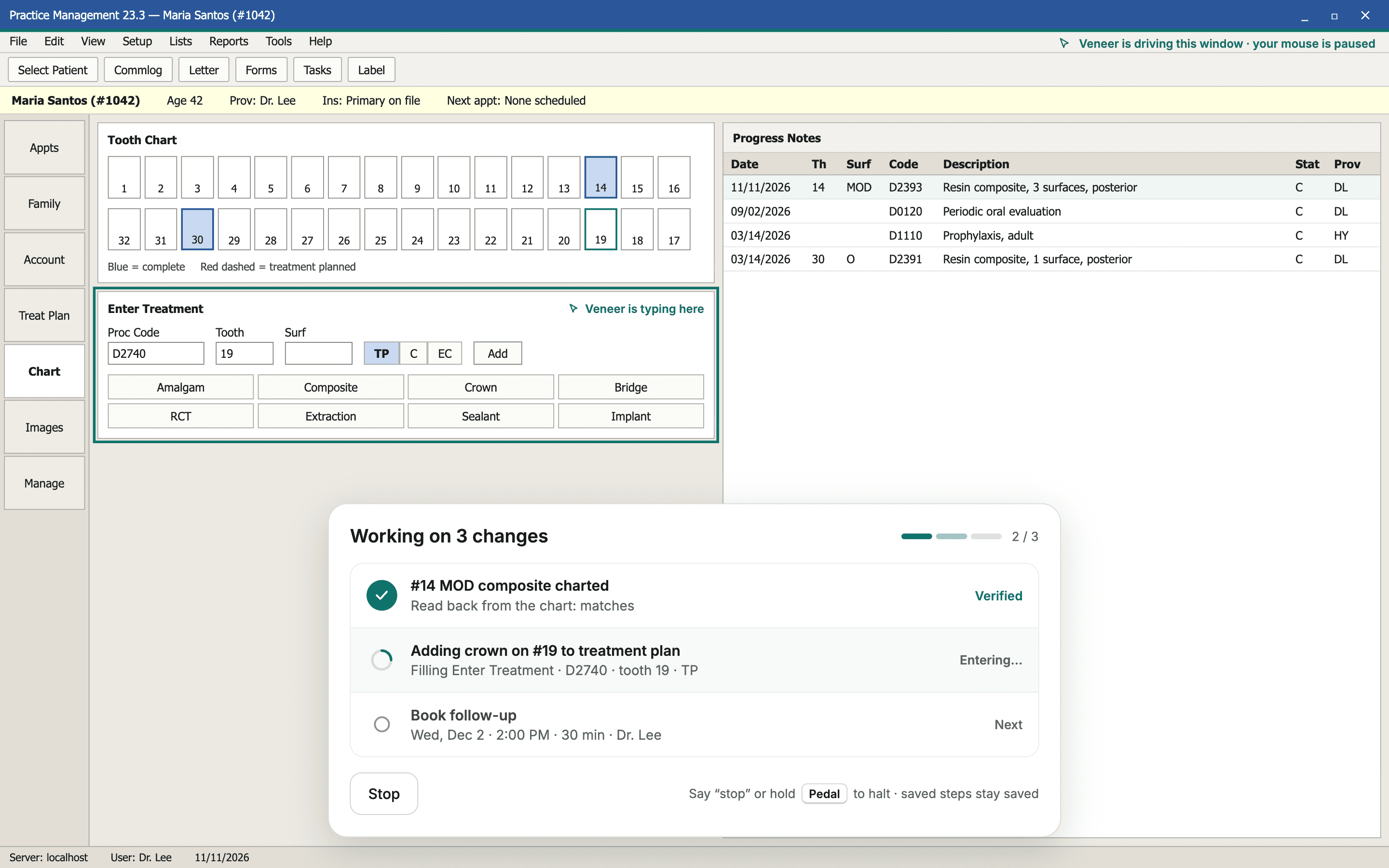
Veneer fills in Open Dental’s own screens while you watch. Say “stop” at any point.
Saved and checked
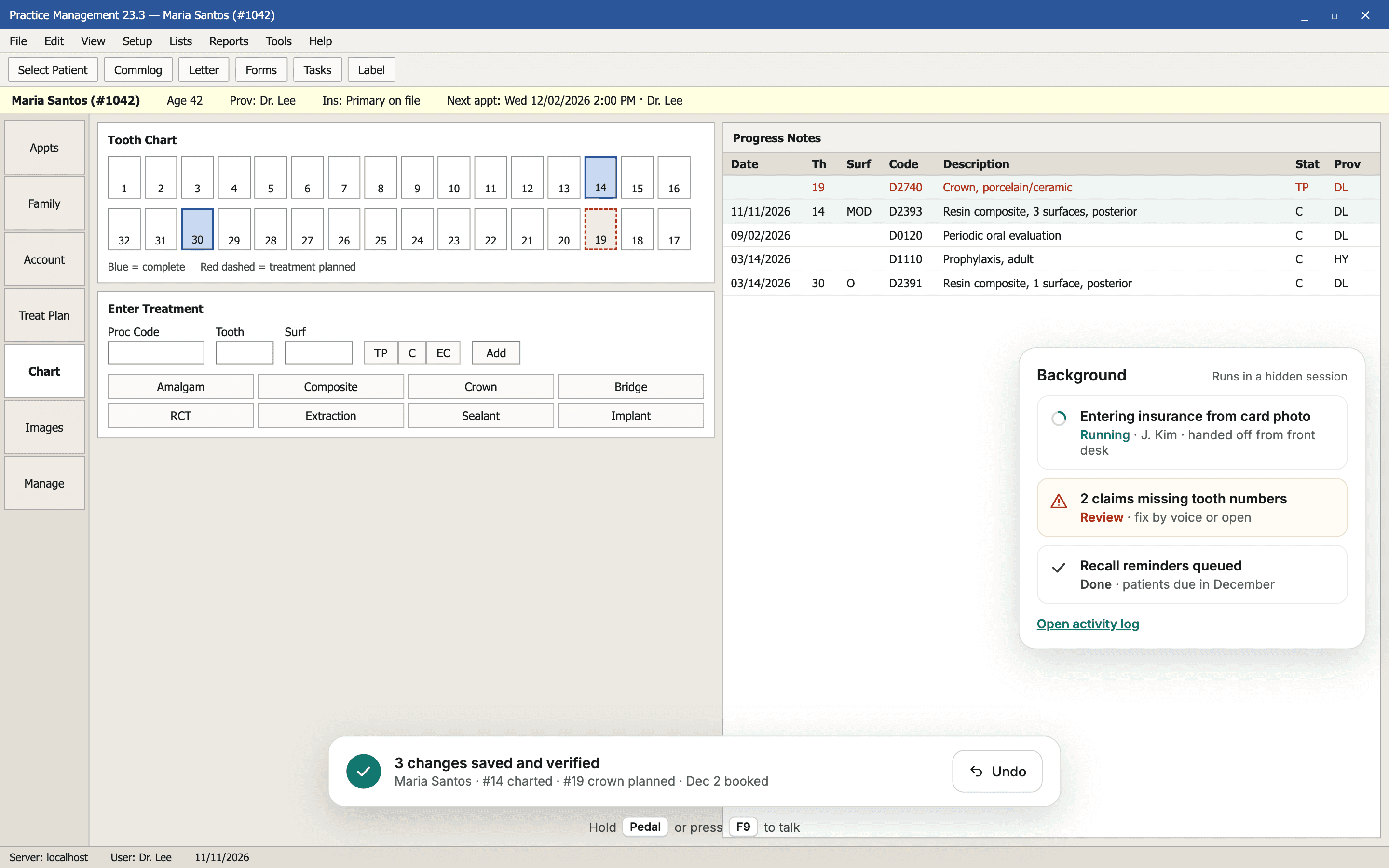
Veneer reads the result back from Open Dental to confirm it saved correctly, with undo where Open Dental allows it.
Charting
Chart by tooth and surface in one sentence.
“Completed MOD composite on 14, crown planned on 19.” Veneer turns that into the right codes from your own procedure list and shows the fee before anything posts.
- Completed, planned or existing work
- Surfaces checked against each tooth
- Ledger charge shown before you approve
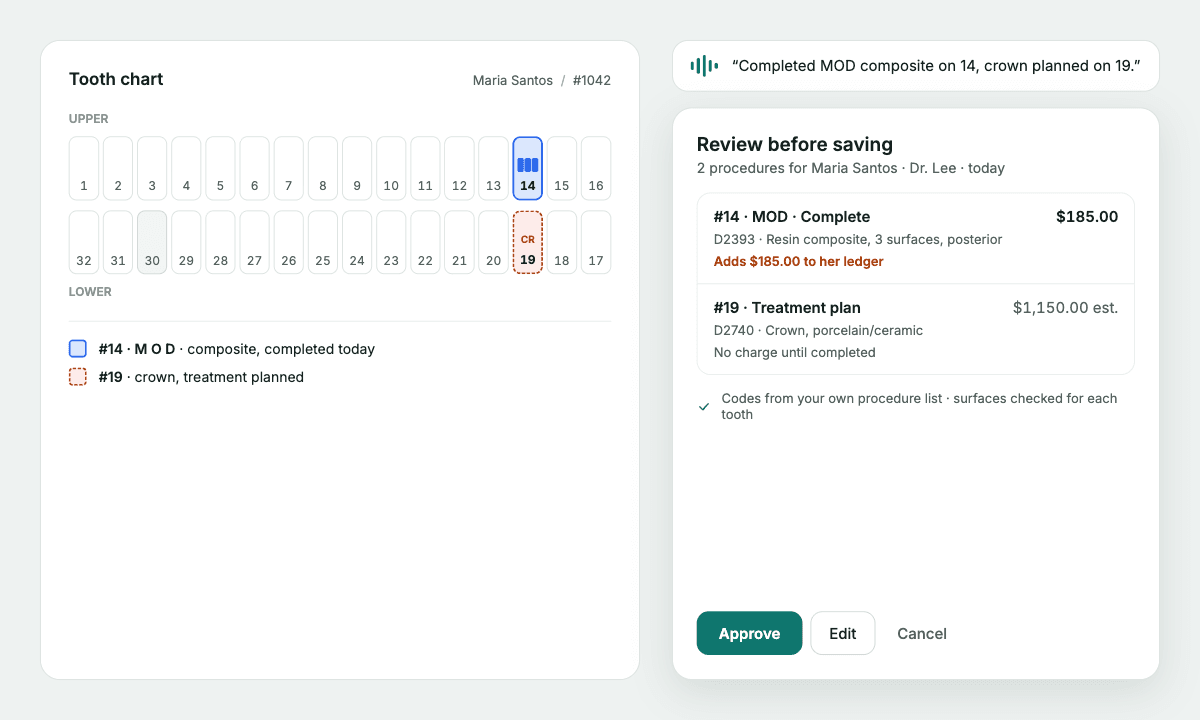
Nothing saves without your OK.
Veneer was built for clinical records first and speed second. These rules are enforced in the software, not left to the AI.
You approve the exact change
The plan you see is the plan that runs. If anything differs, it stops.
Right patient, every time
It checks the patient ID on screen before every entry, and asks when two names look alike.
Verified after saving
Each change is read back from Open Dental. A mismatch is shown, never hidden.
Things it will never do
Sign notes, send claims, post payments, edit fees or delete patients.
Your login stays yours
Veneer never sees or stores Open Dental passwords. It works as the person signed in.
A record of everything
Every action is logged with a screenshot, and every note it writes is marked “via Veneer.”
Coming next
What we’re building now. Founding practices get each one first.
In development
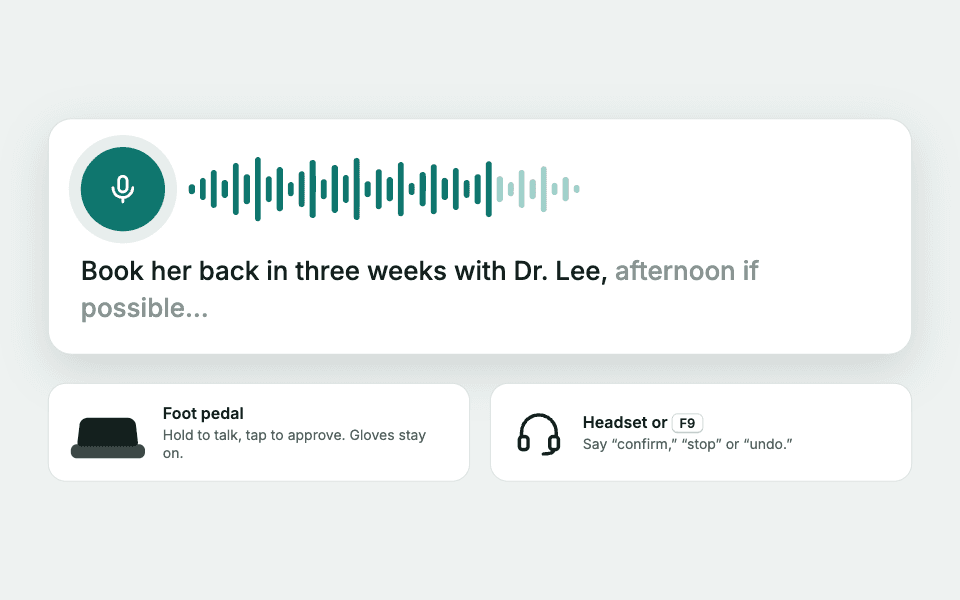
Voice and a foot pedal
Hold the pedal, say what you need, tap to approve. Built for gloved hands and a patient in the chair.
In development
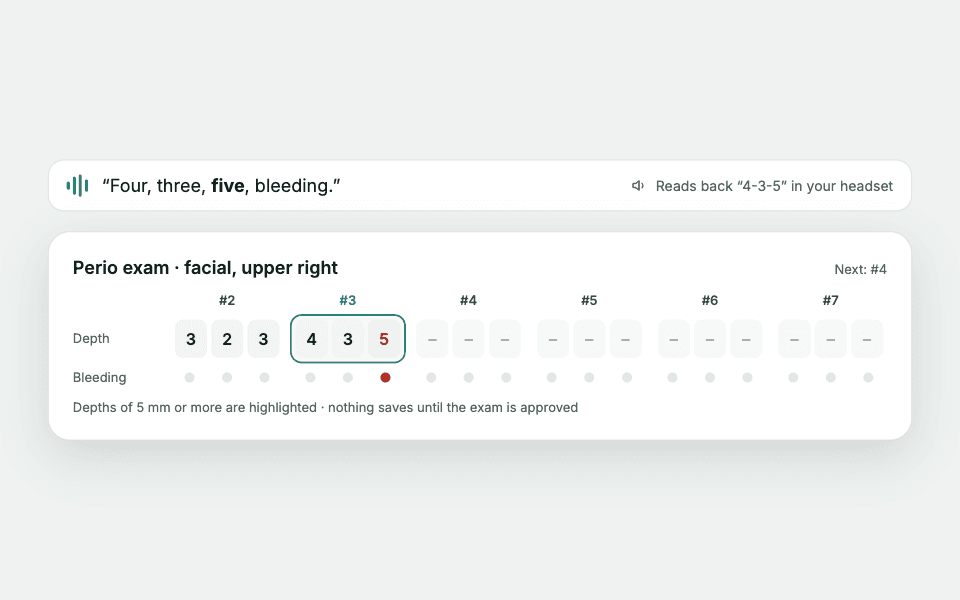
Perio charting by voice
Call out depths and bleeding as you probe. Veneer fills the grid and reads each tooth back to you.
In development
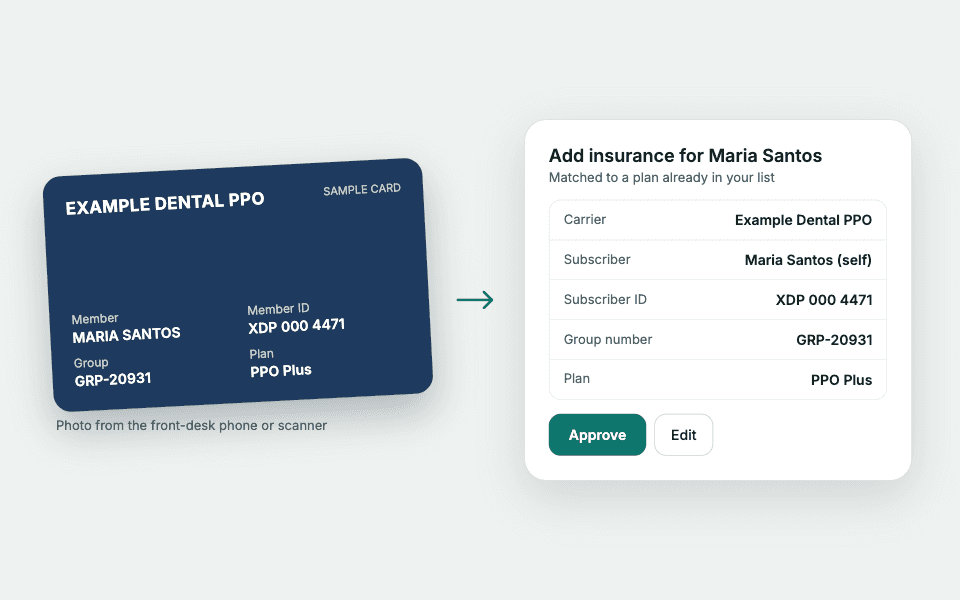
Insurance from a card photo
Snap the card at the front desk. Veneer fills in the plan details and waits for your OK.
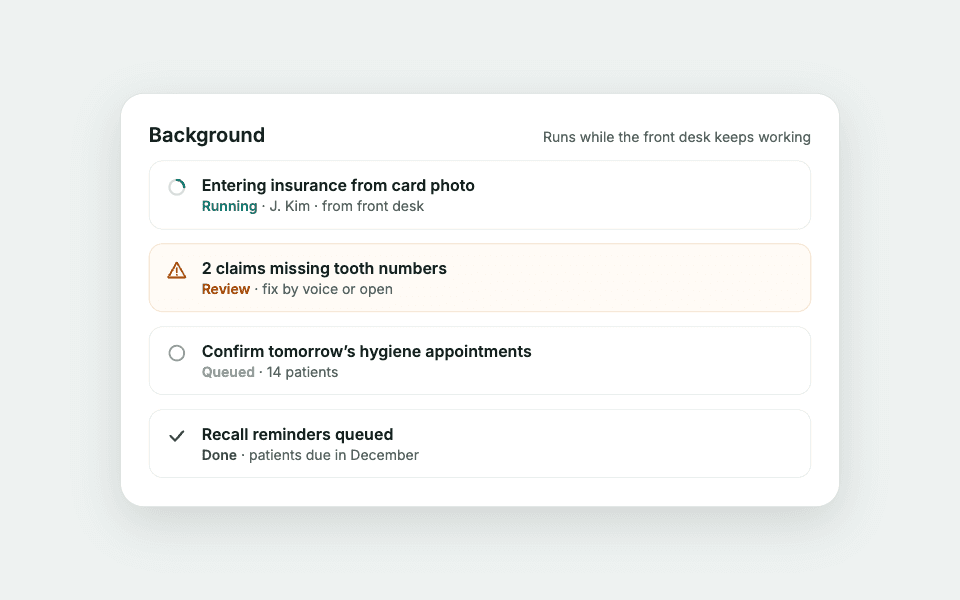
In development
Background work
Hand off routine entry and keep working. Veneer runs it out of sight and flags anything that needs a person.
Founding practices
Help shape Veneer in your office.
We’re working with a small group of Open Dental practices before a wider launch.
- Free for the whole pilot
- We set it up with you and start on test patients
- A direct line to the people building it
- In return: honest feedback as your team uses it
Apply as a founding practice
Questions
Does Veneer replace Open Dental?
No. Open Dental stays your system of record. Veneer fills in its screens for you, the same way your team would.
What can it do today?
Find and open patients, book and cancel appointments, add clinical notes, and chart procedures by tooth and surface.
How is patient information handled?
Veneer runs on your office PCs. To understand requests it uses an AI service, and we sign a business associate agreement with every practice before any real patient data is involved.
Do we need new hardware?
No. It runs on the Windows PCs you already have. A headset and a USB foot pedal are optional for hands-free use.
What if it gets something wrong?
You see the plan before anything saves, and Veneer checks every result. If something doesn’t match, it stops and shows you.
We don’t use Open Dental.
Tell us what you run in the form. Support for more practice software is planned.